

Using LORA
LORA (Live Onchain Resource Analyzer) is a web-based interface for exploring Algorand networks. It lets you inspect accounts, transactions, assets, and applications, and it also provides tools for deploying and calling smart contracts.
LORA supports LocalNet, TestNet, and MainNet. While AlgoKit gives you programming and command-line tools for working with Algorand, LORA gives you a visual way to see what is happening on-chain.
To learn more about LORA, see the documentation:
To use LORA directly, you can use the hosted version at https://lora.algokit.io/, or if you have AlgoKit Installed, LORA can be launched from the CLI (Command Line Interface) by running the following command:
algokit exploreBy default, this opens LORA connected to LocalNet (It will be displayed as LocalNet in the upper right-hand corner), but you can pass in parameters to point it to TestNet or MainNet, or change it manually through the interface.
Create or Connect a Local Account for Testing
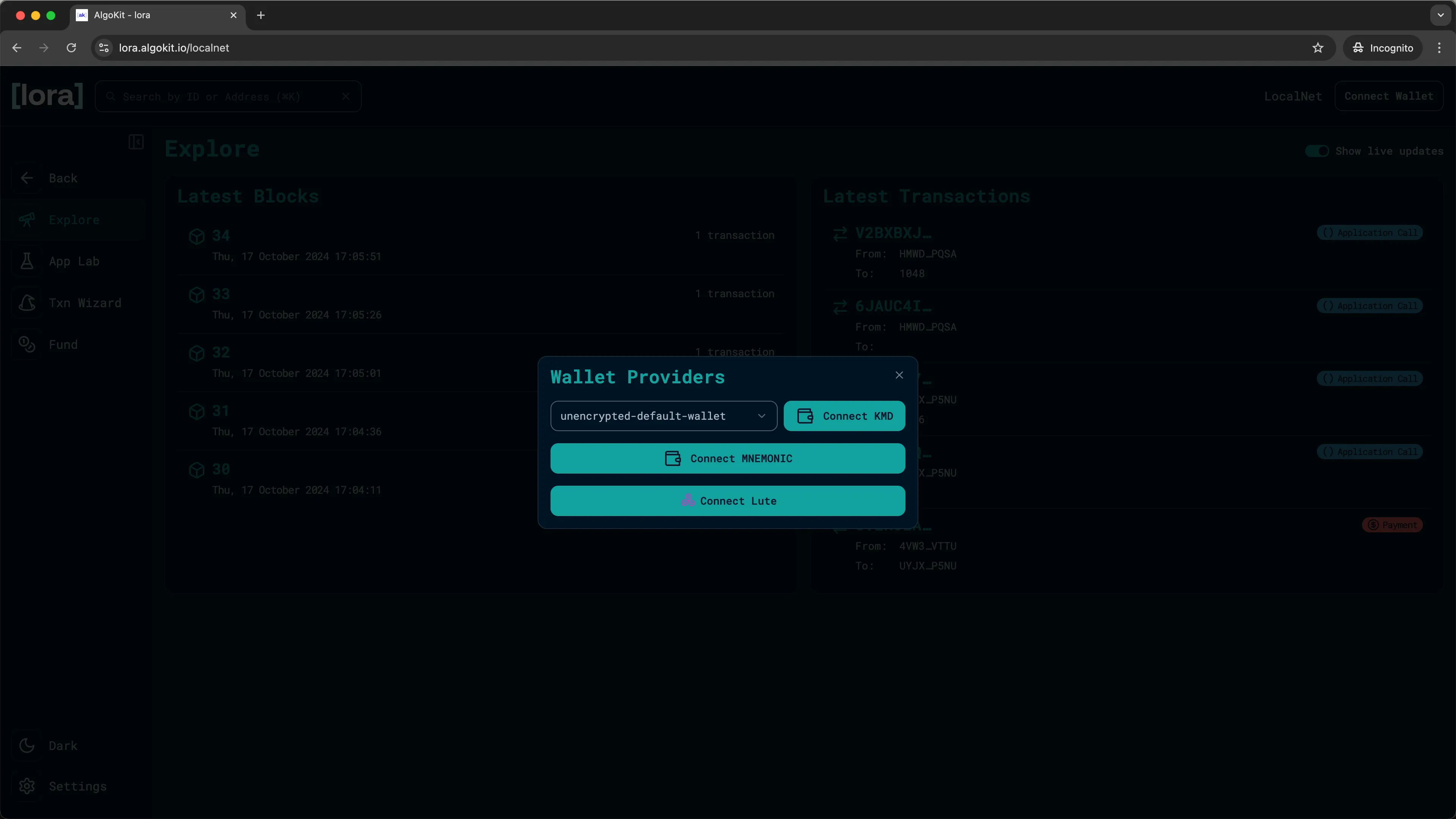
Section titled “Create or Connect a Local Account for Testing”To issue commands against LocalNet you need a wallet with ALGO in it. LORA gives you three main options for connecting a wallet:
Connect KMD: Connect to the default LocalNet wallet managed by KMD (Key Management Daemon). On a fresh LocalNet, this wallet does not require a password.Connect MNEMONIC: Manually enter the mnemonic for an account you control.Connect Lute: Connect to a local account created with Lute.
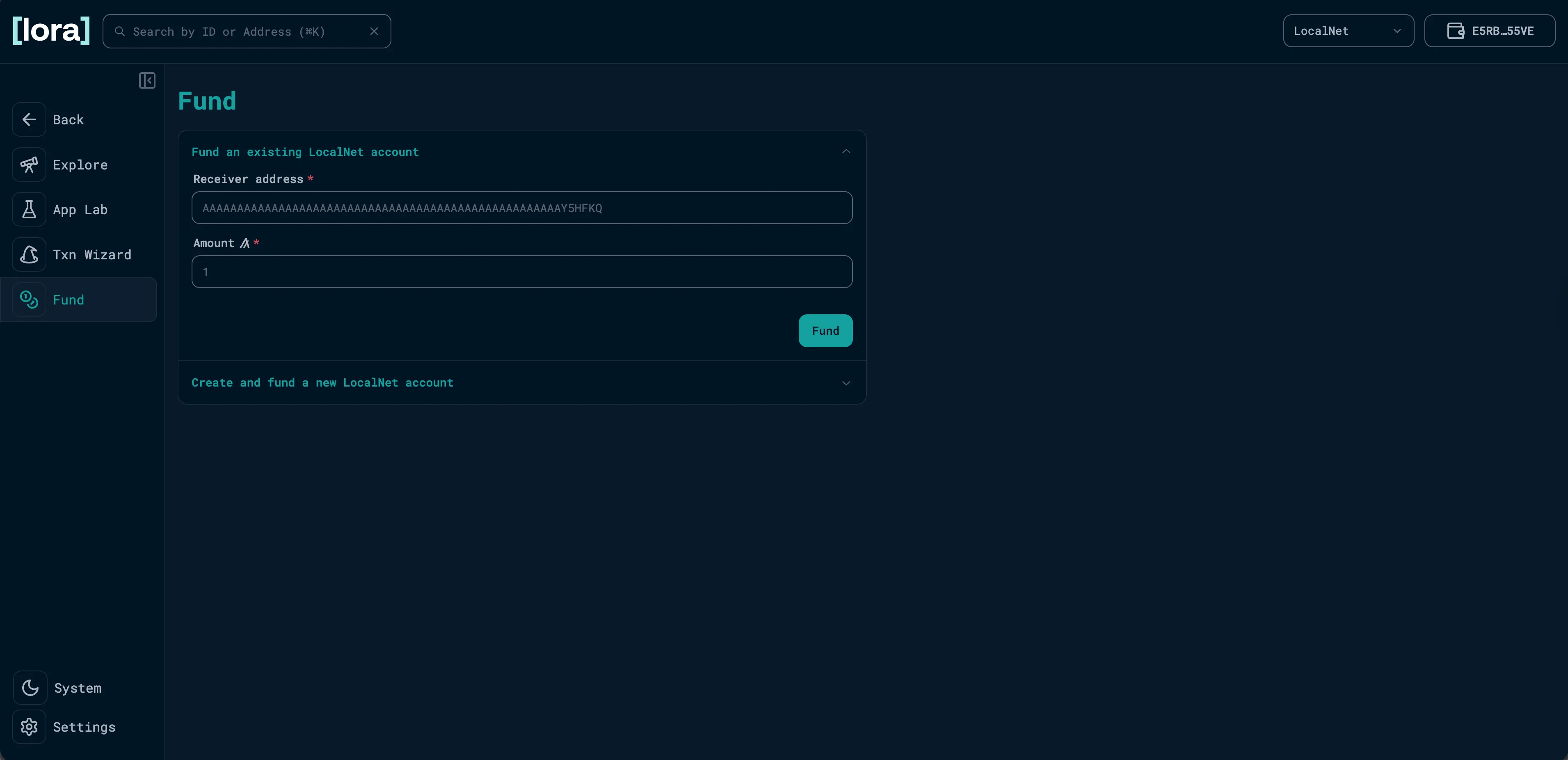
You can also generate additional LocalNet accounts in LORA by selecting Create and fund a new LocalNet account or by using the Fund tab. These accounts are added to the KMD keychain and can be selected from the wallet dropdown after connecting KMD.
In this guide, we’ll demonstrate using the default KMD wallet.
Select Connect wallet in the upper-right corner, and you will be prompted with the three wallet choices. Choose the Connect KMD option. This will prompt you to enter the KMD password. If this is your first time using LocalNet, you do not have a KMD password, so leave it blank and click OK. This connects the KMD account to LORA so you can sign transactions from the interface.
Explore the LORA Interface
Section titled “Explore the LORA Interface”In the left-hand navigation, you will find 4 tabs:
Explore: The blockchain explorer.App Lab: Find, deploy, and interact with Algorand applications.Txn Wizard: Build, simulate, group, and submit transactions.Fund: Generate and fund LocalNet or TestNet accounts.
Explore
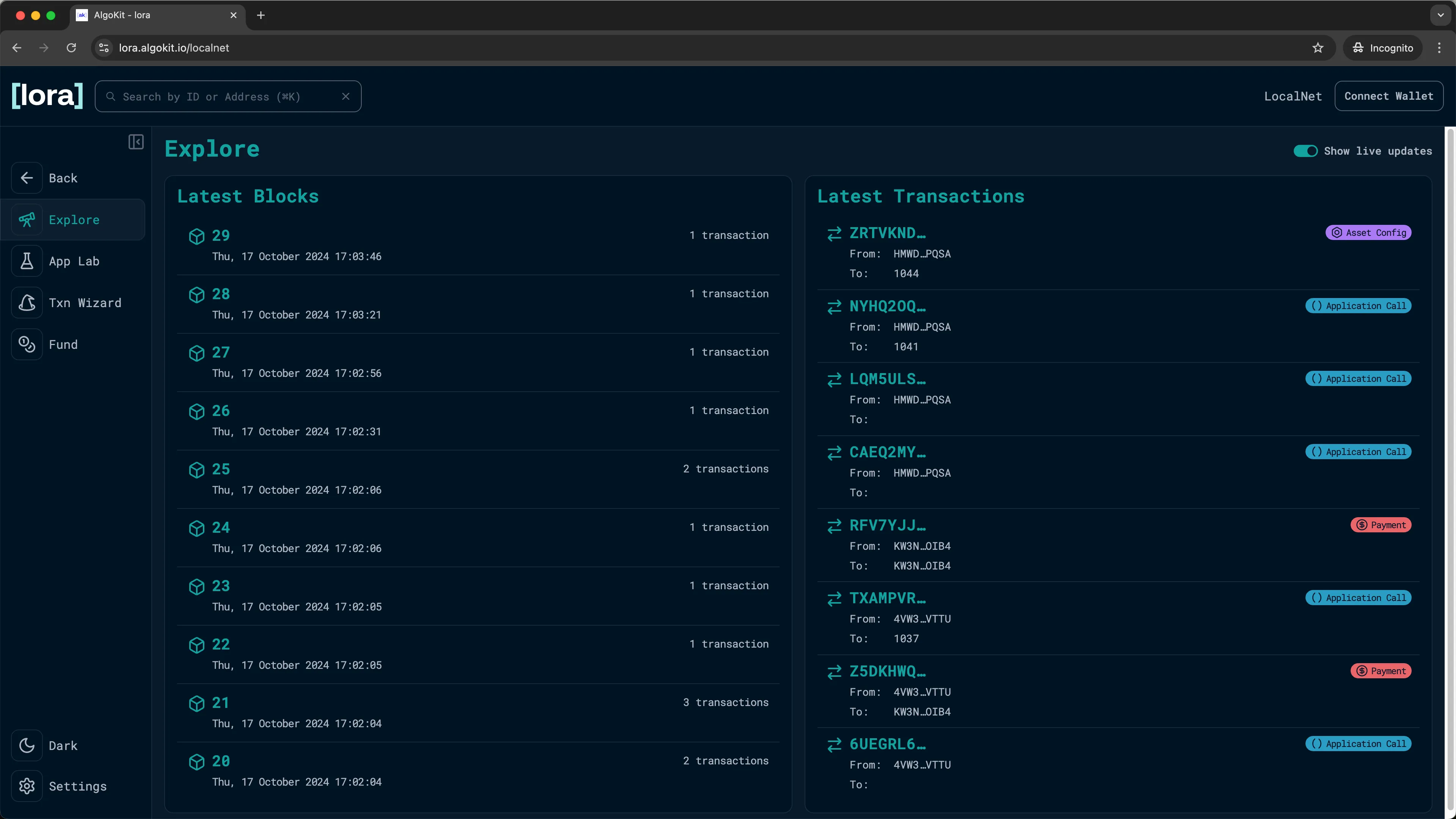
Section titled “Explore”If you are connected to TestNet or MainNet, you will see new blocks and transactions appear as they are added to the blockchain. You can click on any of them to drill down deeper.
On the default LocalNet, new blocks are only produced when transactions are submitted. If the network is idle, it is normal to not see any activity here.
App Lab
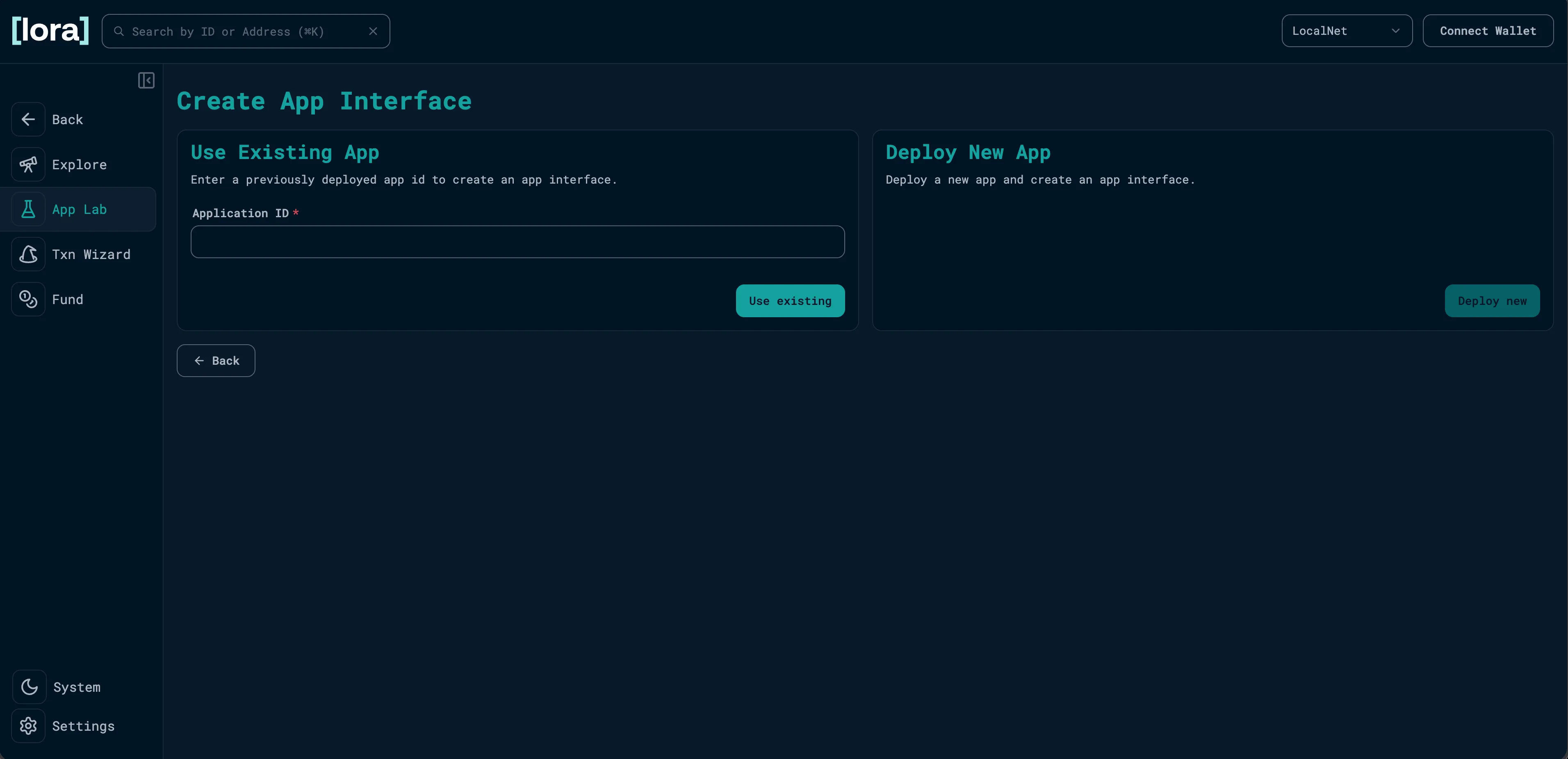
Section titled “App Lab”In the App Lab, you can connect to an application you’ve already deployed by inputting the application ID.
You can also deploy a new application that you’ve already compiled to the blockchain through the web interface. We will walk you through this process in a later tutorial.
Txn Wizard
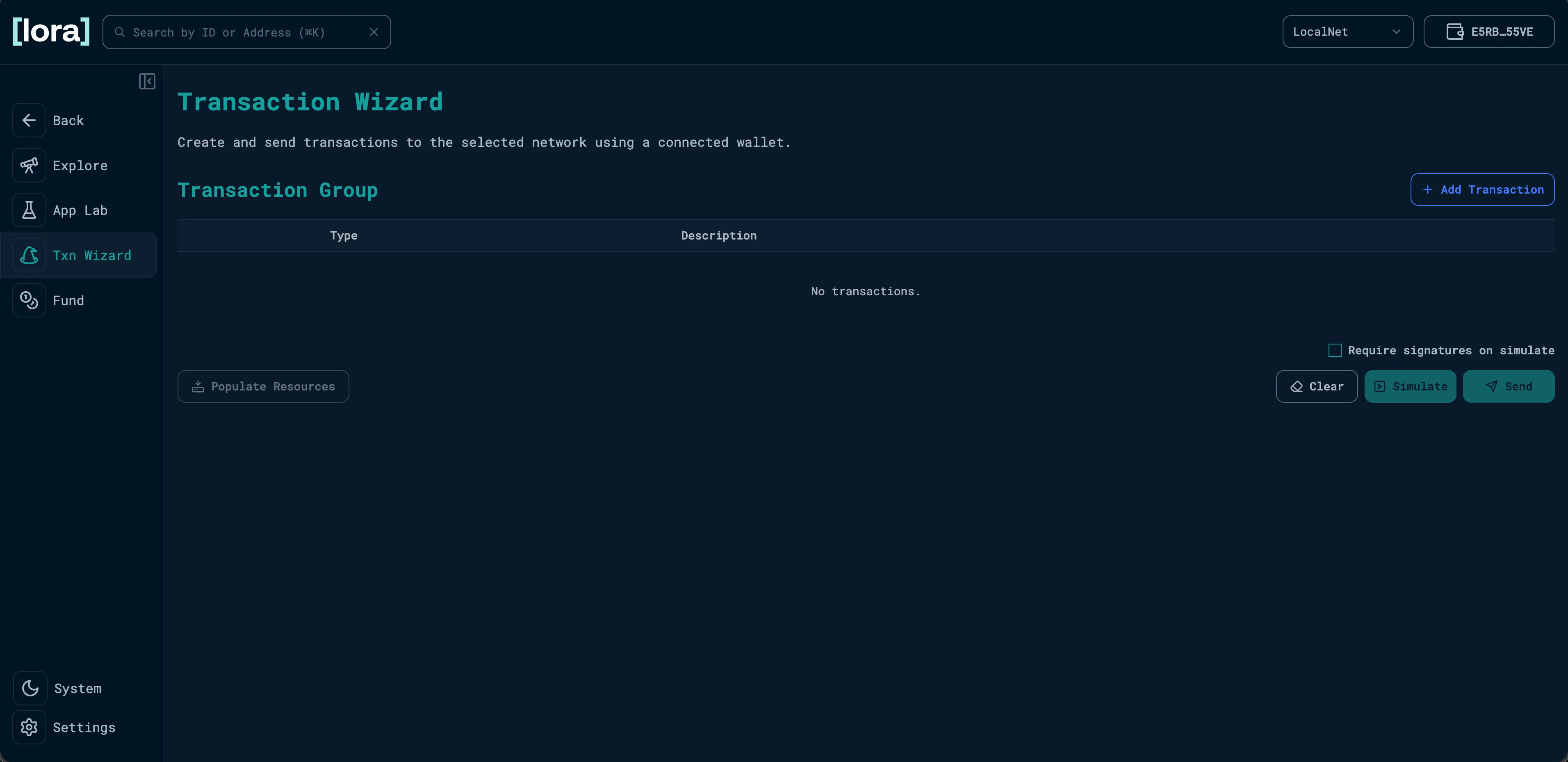
Section titled “Txn Wizard”The Txn Wizard allows you to prepare transactions and submit them to the blockchain in a visual and interactive way. You can submit one transaction at a time, or you can prepare a series of transactions and take advantage of Algorand’s native atomic transaction groups.
You can also run transactions in simulate mode to check whether they would succeed without submitting them to the chain.
If you are connected to LocalNet, you have access to infinite test Algos and can use the Fund tab to send or mint them into any accounts you want.
However, this tab is disabled if you are connected to MainNet, and if you are on TestNet, you will need to go through an additional step of verifying your email in order to get a drip of TestNet Algos.
Next Steps
Section titled “Next Steps”Now that you know how to open LORA, connect a LocalNet account, and navigate the interface, you are ready to start building.
In the next tutorials, you will begin writing code and use LORA to inspect, simulate, and interact with what you build.